How to Search Land Registration Details Online in UP (Step‑by‑Step Guide)

If you own land in Uttar Pradesh or plan to buy property, checking land registration details online can save you time, travel, and stress. Instead of visiting offices again and again, you can now view most registry records from home using the official online system managed by the Stamp and Registration Department Uttar Pradesh in Uttar Pradesh.
In this guide, you will learn exactly how to search land registration details online in UP, what information you need, what results you can expect, and what to do if something looks wrong.
What does “land registration details” mean in UP?
Land registration details are the official records created when a property is registered. These records usually include:
- Owner name
- Property location (district, tehsil, village or city)
- Document number and registration year
- Type of deed (sale, gift, etc.)
- Area or plot information
- Sub‑Registrar Office where registration happened
People use these details to confirm ownership, verify documents before purchase, apply for loans, or resolve disputes.
What you need before starting the online search
Before opening the portal, keep at least one of these ready:
- Document Number + Registration Year (best option)
- Owner Name
- Plot / Khasra Number (mainly for rural areas)
- District and Tehsil
- Property type (urban or rural)
Having the document number gives the fastest and most accurate result. If you do not have it, you can still search using area details and owner name, but results may take more filtering.
How to search land registration details online in UP (complete process)
Follow these steps slowly. You do not need any technical skills.
Step 1: Open the official portal
Visit the property search section of the UP registration system from your browser. Make sure you are on the government site managed by the state registration department.
Tip: Always check that the website address ends with .gov.in.
Step 2: Choose “Property Search”
On the homepage, look for Property Search / सम्पत्ति खोजें.
Click it to open the search page.
You will usually see multiple search options such as:
- Search by document number
- Search by owner name
- Search by area (district, tehsil, village or city)
Pick the option that matches the information you already have.
Step 3: Select district and tehsil
Now choose:
- District
- Tehsil
- Sub‑Registrar Office (if asked)
These fields are mandatory. Without them, the system cannot locate the correct records.
Take your time here. A wrong district means zero results.
Step 4: Enter property identifiers
Depending on your chosen method, enter one or more of the following:
- Document Number
- Registration Year
- Owner Name
- Plot or Khasra Number
After that, fill the captcha shown on screen.
Then click Search.
Step 5: View land registration details
If matching data exists, your screen will show:
- Registered owner name
- Property address
- Registration date
- Deed type
- Document number
- Office name
Most entries also include a View / Download option, where you can see the record summary.
Some sections allow PDF download for reference.
How to search land registration details by document number (fastest way)
If you already have the document number:
- Choose Search by Document Number
- Enter:
- Document number
- Registration year
- District
- Submit
This method usually gives direct results without long lists.
Banks, lawyers, and buyers prefer this method because it avoids confusion between similar names or plots.
How to search by owner name or area
If document number is not available:
- Select Search by Name / Area
- Enter owner name (full or partial)
- Choose district and tehsil
- Add village or city (if asked)
- Click search
You may see multiple results. In that case, match them using:
- Registration year
- Locality
- Property type
This method works well for old properties but needs patience.
Urban vs rural land registration search
The process is almost the same, but the identifiers differ:
For urban properties
- City or ward
- House or plot number
- Document number
For rural properties
- Village name
- Khasra or Khata number
- Owner name
Rural searches rely more on Khasra data, while urban searches focus on document numbers and addresses.
What to do if no record appears
Sometimes the portal shows “No Data Found.” Common reasons include:
- Wrong district or tehsil
- Typing mistake in document number
- Very old records not fully digitized
- Owner name spelling mismatch
Try again with fewer fields. If it still does not appear, visit the Sub‑Registrar Office with your papers. Older entries are sometimes available only offline.
Why checking land registration details online is important
Online verification helps you:
- Confirm legal ownership
- Avoid buying disputed property
- Match seller claims with official records
- Support bank loan applications
- Keep personal records safe
Spending five minutes online can prevent years of legal trouble later.
Safety tips while searching online
- Use only government websites
- Never share OTPs or personal IDs with unknown callers
- Avoid paid agents unless absolutely needed
- Save screenshots or PDFs for reference
- Double‑check district and year before searching
Conclusion
Searching land registration details online in UP is now simple and practical. With basic information like document number, owner name, or plot details, you can access official records from home. The system run by the state registration department allows both urban and rural property searches and helps citizens verify ownership without long office visits.
If you plan to buy, sell, or review property, always check registration details first. It is quick, free, and protects you from costly mistakes.
FAQs
1. Can I search UP land registration details without document number?
Yes. You can search using owner name, district, tehsil, and village or city, though results may show multiple entries.
2. Is online land registration search free in UP?
Yes. Viewing basic registration details on the government portal does not cost anything.
3. Can I download the registry copy online?
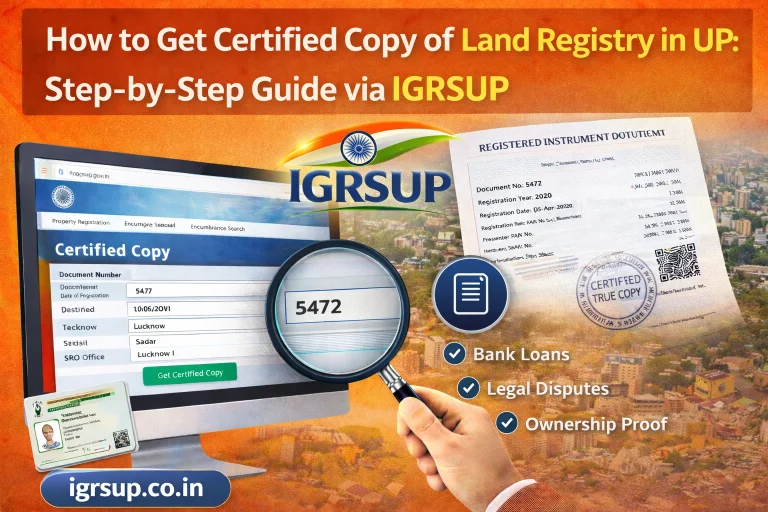
You can usually view and save record summaries online. For certified copies, you may still need to apply through the Sub‑Registrar Office.
4. How far back do online records go?
Most recent registrations are available online. Very old records may require an offline visit.
5. Does this work on mobile phones?
Yes. The UP property search system works on smartphones, though using a laptop makes form filling easier.